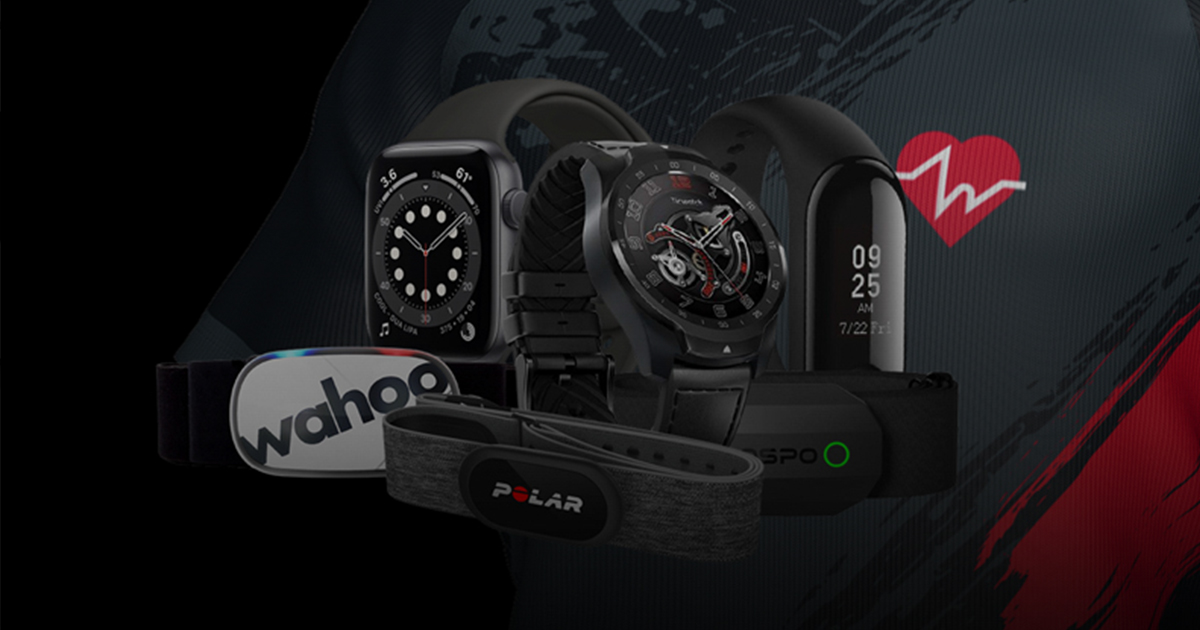
Home Assistant integration for HypeRate Desktop

Your lights already know when the sun goes down. Now they can know when your pulse hits 170.
HypeRate Desktop can publish your live heart rate, your zone and your in-game moments to any MQTT broker. Home Assistant picks them up on its own. No YAML, no template sensors, no restart. A device called HypeRate Desktop simply appears, with your heart rate in it.
From there it is your house. A lamp that follows your heart rate zone. A red flash when you die in a raid or lose a 1v1. A notification when you have been above 170 for two minutes straight. The overlay tells your viewers. Home Assistant tells your room.
This guide covers the whole path: broker, Home Assistant, the app, and then a handful of automations that actually do something. It also covers the two broker traps that cost most people an evening.
What you get
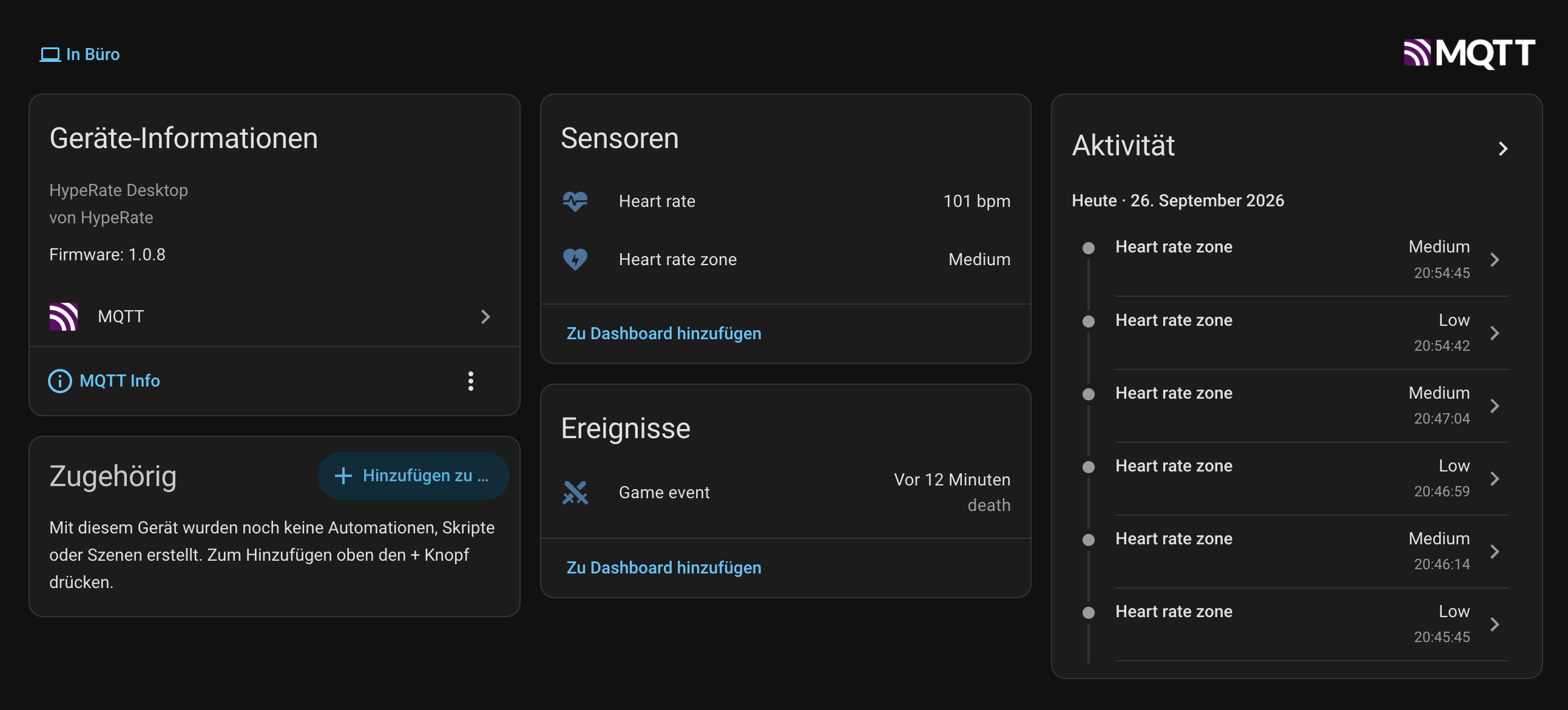
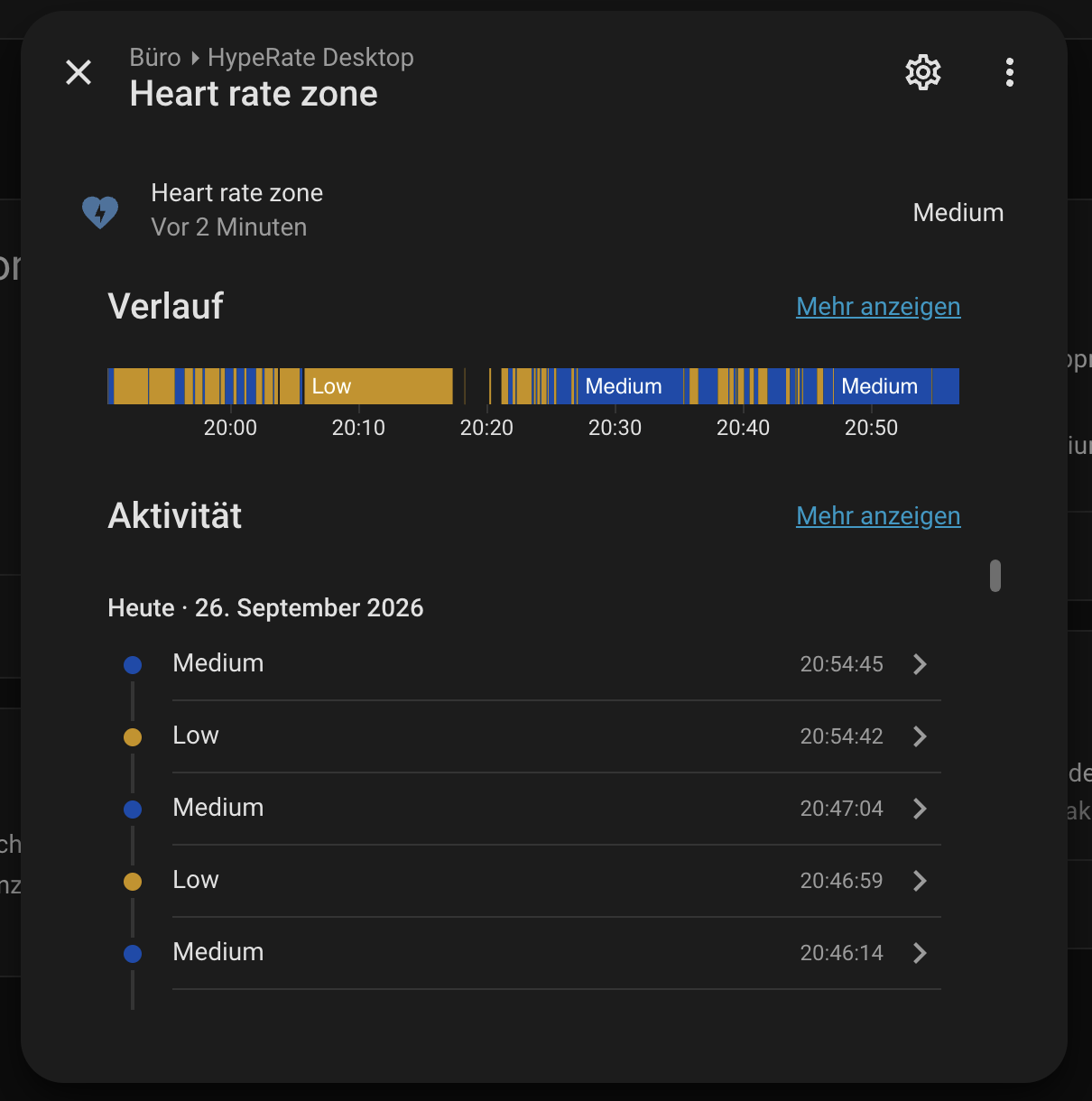
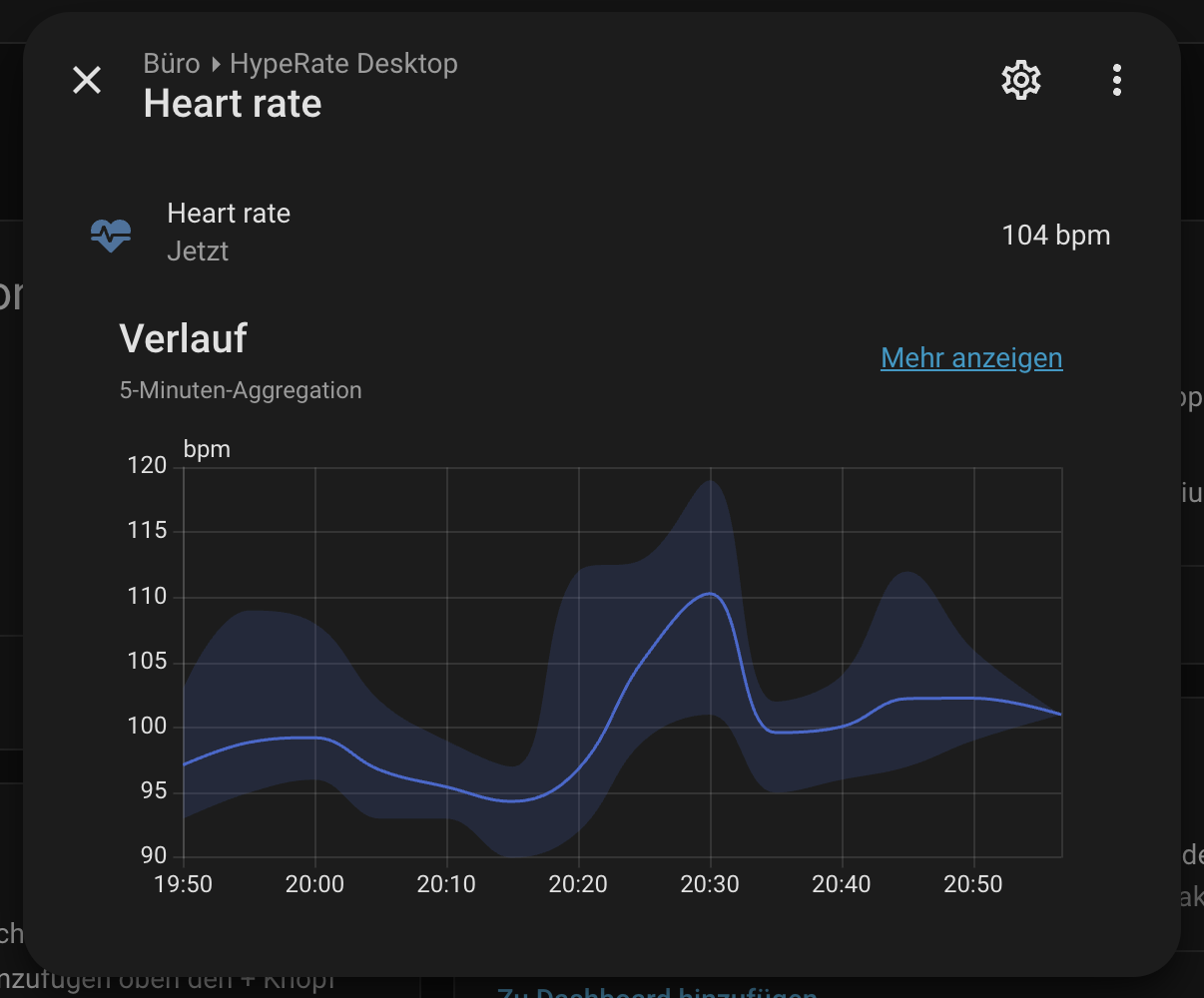
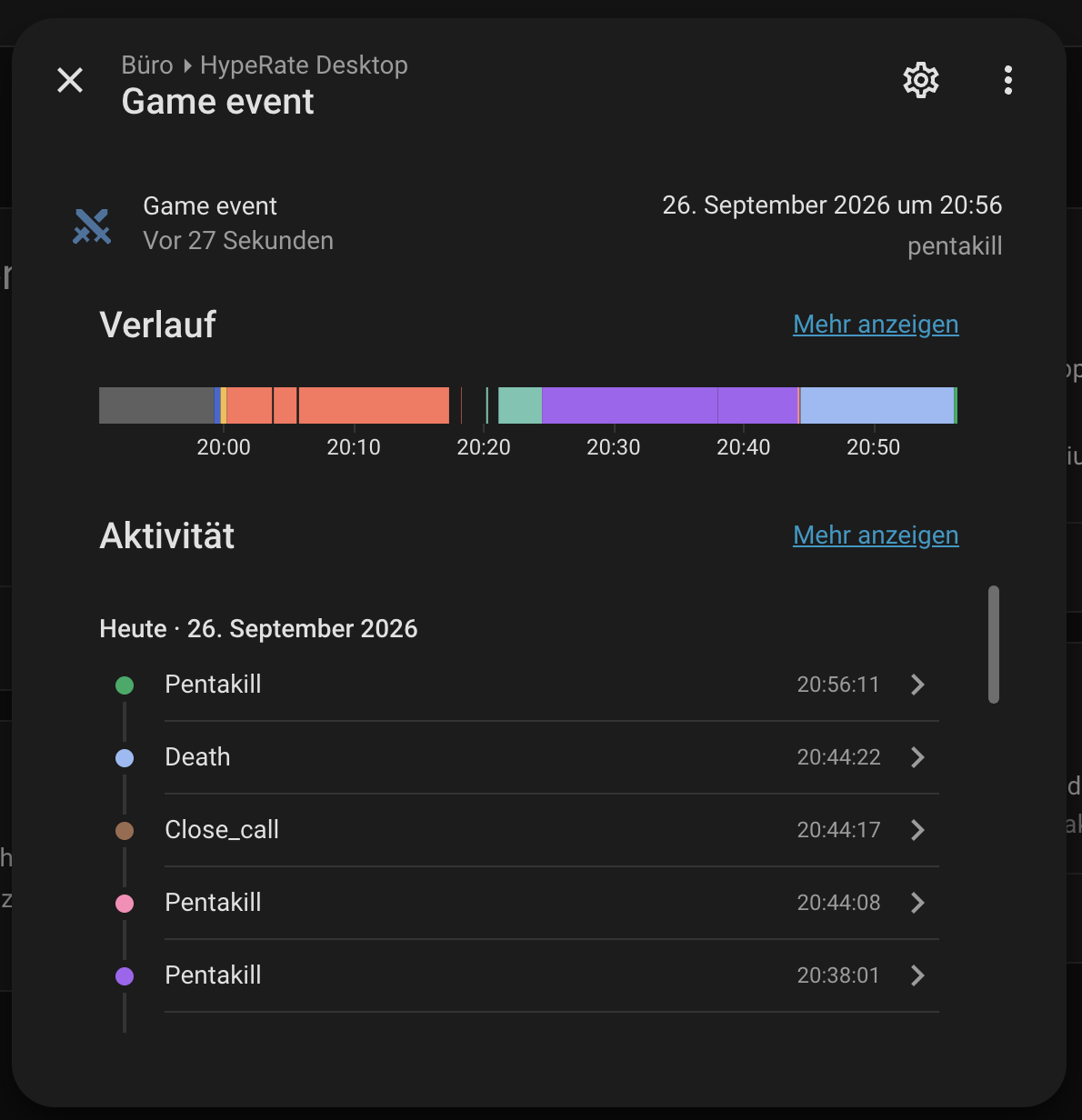
Three entities, created automatically:
| Entity | Type | What it holds |
|---|---|---|
sensor.hyperate_desktop_heart_rate | Sensor, bpm | Your live heart rate, at most one update per second |
sensor.hyperate_desktop_heart_rate_zone | Sensor | The zone name, with the zone colour as an attribute |
event.hyperate_desktop_game_event | Event | Every World of Warcraft and League of Legends moment |
Plus availability: if the app closes, crashes or loses the network, the device goes unavailable in Home Assistant within seconds. That is a last will registered with the broker, so it works even when the app never got the chance to say goodbye.
The zone entity only appears if you have zones switched on in the app. Game events are optional and can be switched off separately.
What you need
- HypeRate Desktop 1.0.9 or newer
- Home Assistant, any installation type
- An MQTT broker. If you already run Home Assistant with the Mosquitto add-on, you have one
- A heart rate source: the HypeRate mobile app or a Bluetooth chest strap
Step 1: the broker
MQTT is a postbox. The app drops messages in, Home Assistant takes them out. The broker is the postbox, and it is the only part of this that ever gives people trouble.
If you use the official Mosquitto add-on
This is the common case and it is short. The add-on authenticates against Home Assistant's own user accounts. It has no separate user list of its own, and it does not allow anonymous connections.
- In Home Assistant: Settings → People → Users → Add user. Call it
hyperate. It does not need administrator rights - Give it a password and write it down
That is your broker account. Done.
Use your Home Assistant machine's IP address, not
core-mosquitto. That hostname only resolves inside Home Assistant's own container network. From your gaming PC it means nothing.
If you run your own Mosquitto
Two things trip people up, and neither announces itself.
Anonymous connections are off. Mosquitto 2.x refuses them by default. Create a user:
mosquitto_passwd -c /mosquitto/config/passwd hyperateand point password_file at that file in mosquitto.conf.
The dynamic security trap. Many Mosquitto images, including several one-click installs, set the broker up with the dynamic security plugin and hand you an admin account. That account looks like it can do everything. It cannot.
mosquitto_ctrl dynsec init creates admin with permission for the $CONTROL/dynamic-security/# topics and nothing else, and the default policy denies both publishing and subscribing. So the app connects successfully, reports itself as connected, and publishes absolutely nothing. No error, no warning, no heart rate.
Create a real account instead. In the Cedalo Management Center, or with mosquitto_ctrl:
- A role with four ACLs, each on topic
#and set to allow:publishClientSendpublishClientReceivesubscribePatternunsubscribePattern
- A client for the app, and a second one for Home Assistant, both carrying that role
Use subscribePattern, not subscribeLiteral. # is a wildcard, "literal" means the topic is taken as plain text, and Home Assistant subscribes with wildcards constantly.
And the part that is easy to miss: Mosquitto only evaluates permissions through roles. A client never carries its own. If your management interface offers an ACL tab on the client, put the permissions on a role anyway and assign it.
Step 2: connect Home Assistant to the broker
Settings → Devices & Services → Add integration → MQTT
- Broker: the IP address of the machine running the broker
- Port:
1883 - Username / password: the account you just made
Home Assistant will tell you immediately whether it worked.
Step 3: the app
In HypeRate Desktop, open the 🏠 Home Assistant card in the settings:
| Field | Value |
|---|---|
| Broker address | The same IP address |
| Port | 1883 |
| User | Your account. A second, separate one is cleaner |
| Password | Its password |
| Encrypted connection (TLS) | Only if your broker is set up for it |
| Create entities automatically | Leave on |
| Also send game events | On if you want WoW and League moments |
| Base topic | hyperate is fine |
Switch the card on. The status line turns green and names the broker you are connected to.
Your broker password is encrypted with your operating system's keychain: Keychain on macOS, DPAPI on Windows, the Secret Service on Linux. It is never written into the settings file in plain text, and the settings window never receives it back.
Step 4: check that it arrived
Press Send test values in the app. In Home Assistant, go to Settings → Devices & Services → MQTT → Devices and open HypeRate Desktop. You should see a heart rate, a zone, and a game event.
If the heart rate is there but the game event stays on Unknown, trigger one from the app. The WoW and League cards both have preview buttons. The event entity has no value until an actual event arrives.
What the entities actually contain
The heart rate sensor is a plain measurement in bpm, so Home Assistant keeps history and statistics for it without any configuration. It updates at most once per second. A chest strap can produce several readings per second, and your database does not need all of them.
The zone sensor holds the zone name, and carries two attributes:
| Attribute | Example | Why it exists |
|---|---|---|
zone_color | #ef4444 | The colour you chose for that zone, in the app |
source | bluetooth or cloud | Whether the reading came from a strap or the HypeRate cloud |
zone_color is the useful one. It means a single automation can colour a lamp for every zone you have, instead of one automation per colour.
The event entity fires once per moment, with these attributes:
| Attribute | Example |
|---|---|
event_type | pentakill |
game | lol or wow |
title | Pentakill |
detail | Jinx, or vs. Grimspire Warlord |
bpm | 178 |
The full list of event types:
death, close_call, closest_call, boss_defeated, intense_enemy, nemesis, kill_streak, peak_heart_rate, kill, multikill, pentakill, first_blood, objective, objective_stolen, ace, victory, defeat
Automations that are worth building
Adjust the entity IDs to yours. Home Assistant sometimes adds a suffix.
A light that follows your heart rate zone
This is the one to start with. Because the colour rides along as an attribute, one automation covers every zone you will ever configure:
alias: Heart rate colours the light
triggers:
  - trigger: state
    entity_id: sensor.hyperate_desktop_heart_rate_zone
actions:
  - action: light.turn_on
    target:
      entity_id: light.office
    data:
      transition: 2
      rgb_color: >-
        {% set c = state_attr('sensor.hyperate_desktop_heart_rate_zone', 'zone_color') or '#ffffff' %}
        [{{ c[1:3]|int(base=16) }}, {{ c[3:5]|int(base=16) }}, {{ c[5:7]|int(base=16) }}]
Change a zone colour in the app and the lamp follows. Nothing here needs editing again.
Red flash when you die
Works in World of Warcraft and in League, because both send the same event type:
alias: Death in game
triggers:
  - trigger: state
    entity_id: event.hyperate_desktop_game_event
conditions:
  - condition: template
    value_template: "{{ state_attr('event.hyperate_desktop_game_event', 'event_type') == 'death' }}"
actions:
  - action: light.turn_on
    target:
      entity_id: light.office
    data:
      rgb_color: [255, 0, 0]
      brightness_pct: 100
      transition: 0
  - delay: "00:00:01"
  - action: light.turn_on
    target:
      entity_id: light.office
    data:
      transition: 3
      brightness_pct: 40
Event entities work a little differently from normal sensors: their state is the timestamp of the last event, and the type sits in an attribute. So you trigger on any state change and filter with a condition. That pattern works for every event type. Swap death for pentakill, boss_defeated or objective_stolen.
Pentakill light show
alias: Pentakill
triggers:
  - trigger: state
    entity_id: event.hyperate_desktop_game_event
conditions:
  - condition: template
    value_template: "{{ state_attr('event.hyperate_desktop_game_event', 'event_type') == 'pentakill' }}"
actions:
  - repeat:
      count: 6
      sequence:
        - action: light.turn_on
          target: {entity_id: light.office}
          data: {rgb_color: [240, 178, 50], brightness_pct: 100, transition: 0}
        - delay: "00:00:00.3"
        - action: light.turn_on
          target: {entity_id: light.office}
          data: {rgb_color: [10, 200, 185], brightness_pct: 70, transition: 0}
        - delay: "00:00:00.3"
A notification when you stay high for too long
alias: Heart rate stayed high
triggers:
  - trigger: numeric_state
    entity_id: sensor.hyperate_desktop_heart_rate
    above: 170
    for: "00:02:00"
actions:
  - action: notify.mobile_app_your_phone
    data:
      title: "Take a breath"
      message: "{{ states('sensor.hyperate_desktop_heart_rate') }} bpm for two minutes straight."
A word on this one: a chest strap and a game overlay are not medical equipment, and neither is your smart home. Use this as a nudge to sit up straight, not as a health monitor.
Your highest heart rate of the day
The statistics integration does this without any scripting. In configuration.yaml:
sensor:
  - platform: statistics
    name: "Heart rate maximum today"
    entity_id: sensor.hyperate_desktop_heart_rate
    state_characteristic: value_max
    max_age:
      hours: 24
Dashboard cards
A gauge, and a card that always shows the last thing that happened:
type: gauge
entity: sensor.hyperate_desktop_heart_rate
name: Heart rate
min: 50
max: 200
severity:
  green: 50
  yellow: 130
  red: 165
type: markdown
content: >-
## {{ state_attr('event.hyperate_desktop_game_event', 'title') or 'Nothing yet' }}
{{ state_attr('event.hyperate_desktop_game_event', 'detail') }},
{{ state_attr('event.hyperate_desktop_game_event', 'bpm') }} bpmFor everyone who prefers raw MQTT
Discovery is convenient, not compulsory. Switch Create entities automatically off and the app publishes only the data. Topics, using the base topic from the settings:
hyperate/desktop/state
{"bpm":142,"zone":"High","zone_color":"#ef4444","source":"bluetooth"}

hyperate/desktop/event
{"event_type":"death","game":"wow","title":"You Died","detail":"vs. Grimspire Warlord","bpm":161}

hyperate/desktop/availability
online | offline        (retained, backed by a last will)
Define the sensor yourself:
mqtt:
  sensor:
    - name: "Heart rate"
      state_topic: "hyperate/desktop/state"
      availability_topic: "hyperate/desktop/availability"
      value_template: "{{ value_json.bpm }}"
      unit_of_measurement: "bpm"
      state_class: measurement
      device_class: null
The same topics work anywhere else that speaks MQTT: Node-RED, ESPHome, a Raspberry Pi with a paho script, your own dashboard. Nothing about this is specific to Home Assistant.
Troubleshooting
The app says connected, but nothing arrives in Home Assistant. Almost always the broker account. Read the dynamic security section above. A connected client with no publishing rights behaves exactly like this. Subscribe with any MQTT client to hyperate/# and see whether anything is there at all.
Home Assistant does not create the device. Check that Create entities automatically is on, and that the discovery prefix on both sides is homeassistant, which is the default everywhere.
The game event stays on "Unknown". No event has arrived yet. Use a preview button in the WoW or League card. The heart rate entity is the one that proves the connection works.
Everything goes unavailable when I close the app. That is intentional. Closing the app, a crash and a lost network connection all make the device unavailable, so an automation never acts on a heart rate from twenty minutes ago.
The heart rate updates more slowly than in the app. Deliberate, once per second at most. A chest strap can deliver several readings per second and there is nothing in your house that needs to know about all of them.
I switched zones off and the zone entity is still there. It is removed when you switch it off, but Home Assistant sometimes keeps a stale entry. Delete the entity in Home Assistant and let it be recreated.
FAQ
Do I need to be a streamer for this? No. It is a heart rate in your smart home. Use it during workouts, or to watch what a horror game does to you.
Does the data leave my network? No. The app talks to your broker directly. If your broker is in your house, the data stays in your house.
Can several machines publish to the same broker? Yes, give each one its own base topic. Each becomes its own device in Home Assistant.
Does this work without the games? Yes. The heart rate and zones are the main event; game moments are an extra you can switch off. If you do want them, there are guides for the World of Warcraft overlay and the League of Legends overlay.
Does it work with TLS? Yes, there is a switch in the app. Port 8883 is the usual one for encrypted MQTT.
What about Node-RED? Subscribe to hyperate/desktop/state and hyperate/desktop/event with an MQTT-in node. The payload is JSON.
What does it cost? Nothing. HypeRate Desktop is free and open source.
Download HypeRate Desktop for macOS, Windows and Linux. Free and open source.
Now go make a lamp panic. 💓