Heart Rate Widget for World of Warcraft - Forever
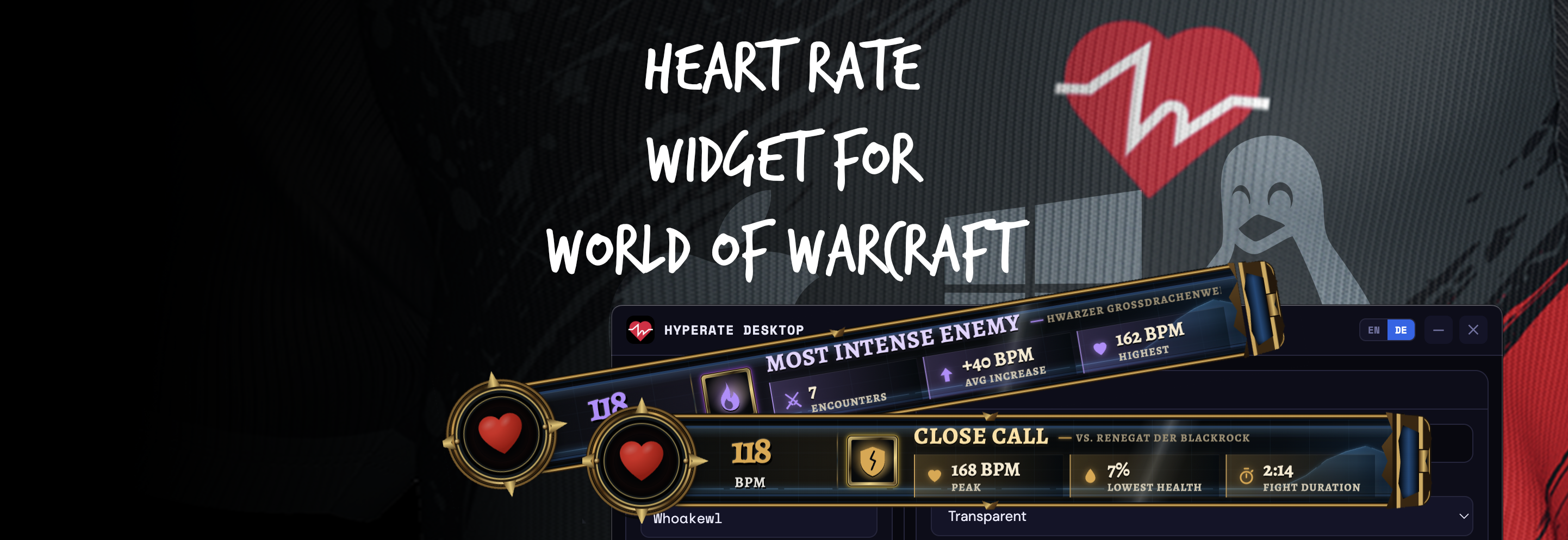
Your heart rate knows how close that pull really was. With the new World of Warcraft integration in HypeRate Desktop, your overlay reacts to what happens in the game: when you kill a boss, barely survive a fight or die, a card slides out with your peak heart rate, your lowest health and the fight duration. Solo, it shows session highlights like your most intense enemy or your current kill streak.
What you get
Live fight results
- Boss Defeated – peak heart rate, lowest health and fight duration of the boss fight.
- Close Call – you survived a fight with very little health left (you choose the threshold).
- You Died – peak heart rate, how much your heart rate went up and how long the fight lasted.
Session insights
- Most Intense Enemy – the enemy that pushes your heart rate up the most.
- Peak Heart Rate – your highest heart rate this session, compared to your last session.
- Closest Call – your lowest health this session and your heart rate in that moment.
- Nemesis – the enemy that killed you most often.
- Kill Streak – kills in a row since your last death.
What you need
- The latest version of HypeRate Desktop (Windows or macOS).
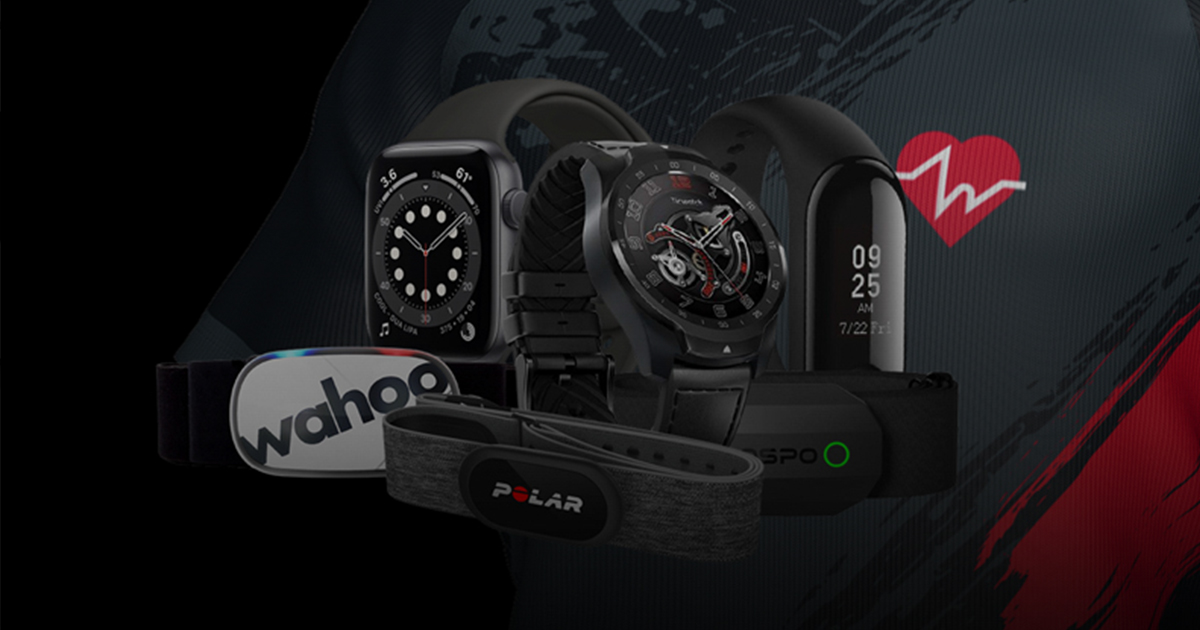
- Your heart rate in HypeRate Desktop – via your HypeRate Session ID or a Bluetooth heart rate monitor.
- World of Warcraft – Retail or Classic (Classic Era, Hardcore and the other Classic versions).
Setup in 4 steps
1. Turn on Advanced Combat Logging (once)
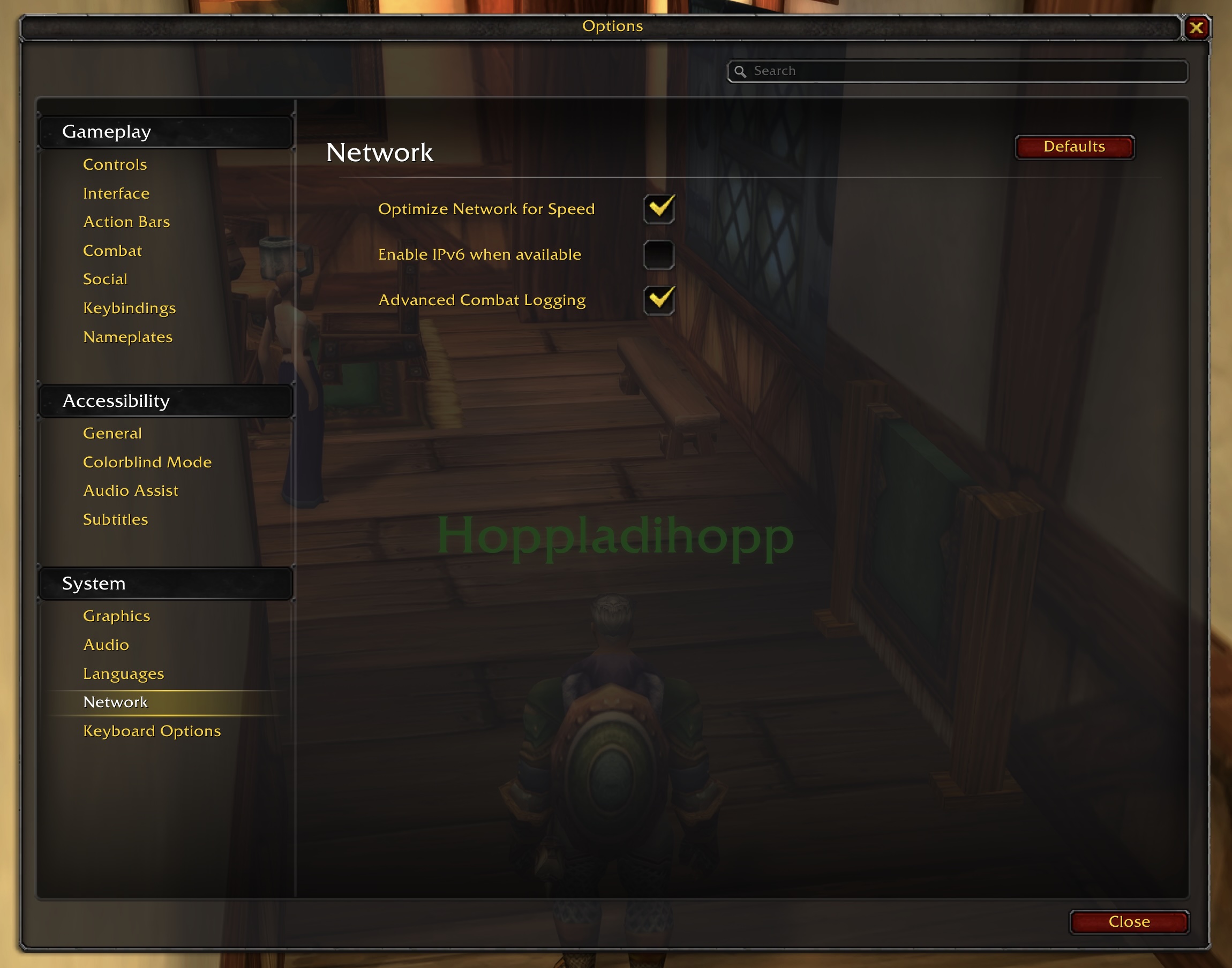
In WoW, open Esc → Options and search for Advanced Combat Logging (usually under System → Network). Tick the box. WoW remembers this setting, so you only have to do it once.
Without Advanced Combat Logging, WoW does not write health values into the combat log – boss kills and deaths still work, but Close Call and Closest Call can't be detected.
Alternative: type /console advancedCombatLogging 1 in the chat. WoW doesn't show a confirmation for this command.
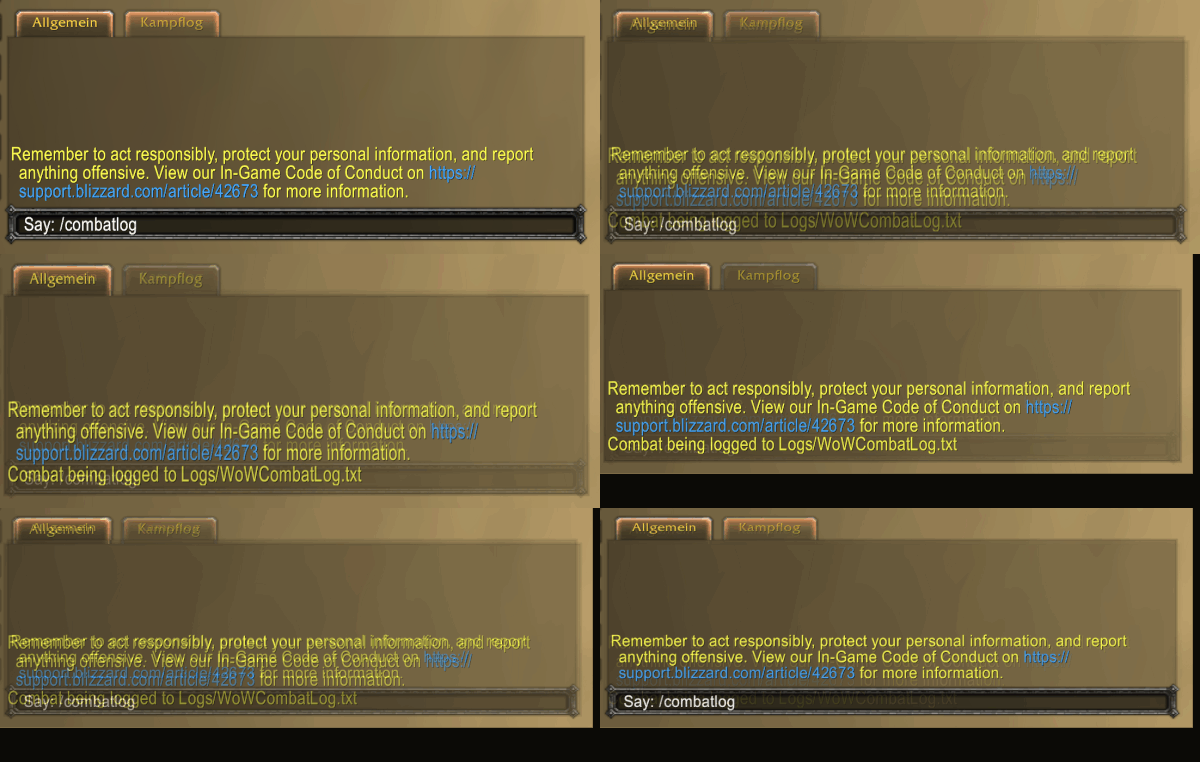
2. Type /combatlog after every login
WoW only writes the combat log while combat logging is switched on – and it does not remember that between sessions. So after every login (and after a /reload), type:
/combatlog
WoW confirms in the chat that combat is being logged. Careful: typing /combatlog a second time switches logging off again.
Tip: if you often forget it, a combat log addon can switch logging on for you automatically.
3. Switch on the World of Warcraft card in HypeRate Desktop
- Open HypeRate Desktop and connect your heart rate.
- Open the World of Warcraft card on the left and switch on Fight results in overlay.
- Your WoW folder is detected automatically through Battle.net. If it isn't, click Auto or choose the folder with … – the folder that contains
_retail_or_classic_era_. - Once WoW writes to the combat log, the status changes to Reading combat log.
4. Show the overlay
Click Show Overlay and drag the widget to where you want it. The overlay switches to the World of Warcraft look automatically. Use the Preview buttons in the card to see every result card before you play. Ctrl + Shift + H (Cmd + Shift + H on Mac) shows or hides the overlay.
Why results sometimes arrive later
WoW doesn't write the combat log line by line. It collects events and writes them to the file in blocks. In dungeons and raids a lot is happening, so a block is full within seconds – that's when you get live results right after the moment.
Solo in the open world it can take several minutes until WoW writes the next block. A "You Died" card minutes after you already respawned wouldn't make sense – so in that case HypeRate Desktop shows a session insight instead:
- at most one card every 2 minutes,
- only when something new happened – for example a new heart rate record, a new kill streak milestone (5, 10, 15, 25, 50 …) or a different most intense enemy,
- everything that happened in between still counts towards your session stats.
Tips
- Replay the last card: move your mouse over the widget and the last message slides out again.
- Close call threshold: choose how low your health has to drop for a Close Call (default 10 %).
- Widget size: adjust the size of the WoW widget with the slider in the card.
- Sessions: a session ends after 30 minutes without new combat log data. Your session summaries stay on your computer and are used for "vs last session".
- Big log files: combat logs from raids can get large. You can delete old files in
World of Warcraft/_retail_/Logs(or_classic_era_/Logs) from time to time.
Troubleshooting
The status says "Waiting for combat log…"
Combat logging is probably not active – type /combatlog in WoW. Solo, it can also take a few minutes until WoW writes the first block. The card shows when WoW last wrote to the log.
The status says "WoW folder not found"
Click Auto or choose your World of Warcraft folder manually with ….
A yellow note says "Advanced Combat Logging is off"
Turn it on (step 1), then type /combatlog twice – once to switch logging off and once to switch it back on – so WoW uses the new setting.
I never get a Close Call
Check that Advanced Combat Logging is on and that your health dropped to or below the threshold you set in the card.
I can't see the overlay over the game
Make sure the overlay is shown (Ctrl + Shift + H). If it's still hidden behind the game, switch WoW to a windowed or borderless display mode.
Still not working?
Click Show diagnostics file in the World of Warcraft card and send us the file through the Feedback button in the app.
FAQ
Is this allowed?
HypeRate Desktop only reads the combat log text file that WoW itself writes when you type /combatlog – the same file that tools like Warcraft Logs use. There is no addon involved, nothing is injected into the game and the game's memory is never read.
Does it work with WoW Classic?
Yes. HypeRate Desktop reads the combat log of Retail and all Classic versions and automatically follows the version you are currently playing.
Does it cost performance?
No noticeable impact. HypeRate Desktop checks the log file once per second and only reads what's new.
Is my combat log uploaded anywhere?
No. The combat log is read locally on your computer, and your session stats are stored locally as well.
Ready? Download HypeRate Desktop, type /combatlog and go pull something big. 💓