
How to Control Your Stream's Music with Your Heart Rate Using HypeRate Music Matcher
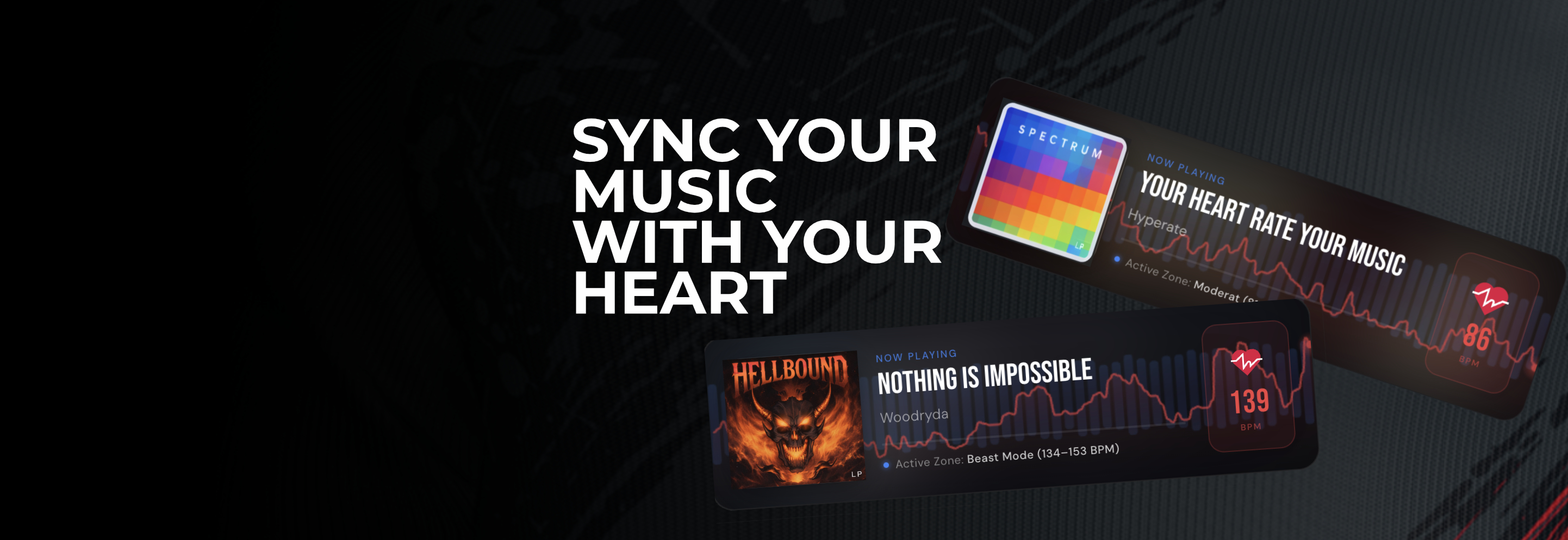
If you've ever been mid-workout on stream, absolutely destroying a set, and had your playlist still playing chill lo-fi in the background — you know the disconnect. Your energy is through the roof, but your music hasn't caught up. HypeRate Music Matcher fixes that.
It automatically adjusts your Apple Music playback based on your real-time heart rate, keeping your music in sync with how hard you're actually working. And with the Stream Deck plugin, you have full manual control right at your fingertips — without ever switching windows.
Here's how to get everything set up.
What You'll Need
- HypeRate and a compatible heart rate monitor
- Apple Music Premium
- Stream Deck (optional, but highly recommended)
- About 10 minutes
Step 1: Connect Your Heart Rate Monitor to HypeRate
If you haven't already, download HypeRate for free at hyperate.io and connect your heart rate monitor. HypeRate supports a wide range of devices including Polar, Garmin, Apple Watch, and most Bluetooth HRMs.
Once connected, you'll have a personal HypeRate ID — a short code that identifies your live heart rate data. You'll need this later, so keep it handy.
Step 2: Set Up HypeRate Music Matcher
Head over to musicmatcher.hyperate.io.
The first thing you'll do is connect Apple Music. Click Connect Apple Music and authorize the app — Music Matcher needs permission to read your playlists and control playback. This is a standard OAuth flow, so your Apple Music password never touches HypeRate's servers.
Once connected, you'll see your Apple Music playlists load on the left side of the screen.
Step 3: Configure Your Heart Rate Zones
This is where it gets interesting. Music Matcher works by mapping your heart rate to different playlists — each zone corresponds to a different intensity level, and when your heart rate moves between zones, your music switches automatically.
By default, you get three zones:
- Easy — resting or light activity
- Medium — moderate effort
- Hard — high intensity
You can rename these zones, adjust the BPM thresholds, and assign a Apple Music playlist to each one. For example:
- Easy → your lo-fi study playlist
- Medium → uptempo pop or electronic
- Hard → full send, high-energy workout tracks
The zone boundaries are automatically suggested based on standard heart rate zone calculations, but you can drag them to fit your personal ranges. If you know your max heart rate or just prefer different thresholds, adjust them freely.
Step 4: Let Auto Adjust Fine-Tune Your Zones
Setting your zones manually is a good start, but everyone's heart rate behaves differently — and the "right" threshold for switching from Medium to Hard isn't the same for a 25-year-old athlete as it is for someone returning to fitness after a break.
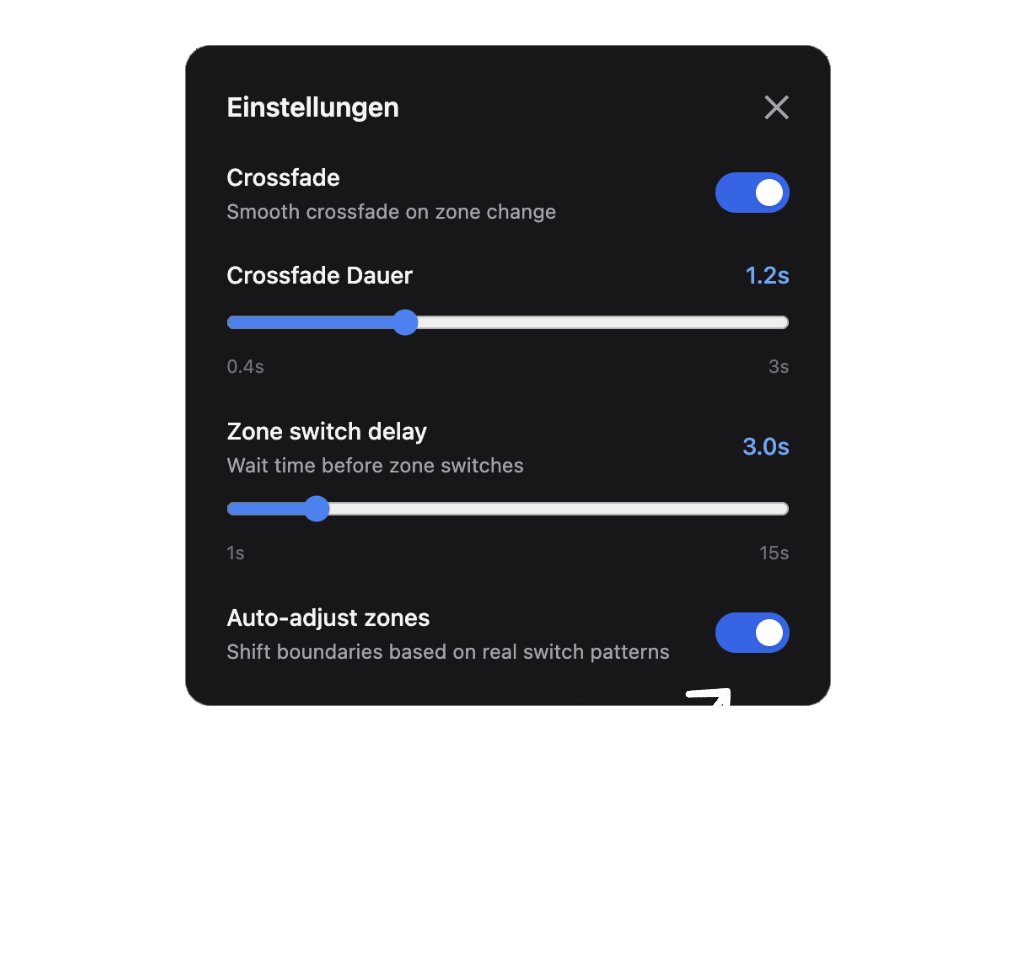
That's where Auto Adjust comes in. Once enabled, Music Matcher watches your actual heart rate patterns over time and shifts your zone boundaries based on when you genuinely transition between intensity levels. Instead of relying on generic calculations, the zones adapt to reflect how you actually move between efforts.
In practice, this means the longer you use Music Matcher, the better it gets. After a few sessions, your zone boundaries will reflect your real switching patterns — so the music change happens at exactly the right moment, not just at a number someone else decided was "medium effort."
You'll find the Auto Adjust toggle in the zone configuration panel. Turn it on and let it run in the background — no manual tweaking required.
Step 5: Install the Stream Deck Plugin
If you use a Stream Deck, the HypeRate Music Matcher plugin gives you direct hardware control over your playback — no mouse required.
Install it from the Elgato Marketplace:
- Open the Stream Deck application
- Go to the Marketplace (the shopping bag icon)
- Search for HypeRate Music Matcher
- Click Install
Once installed, drag any of the available actions onto your Stream Deck layout:
Action | What it does |
Play / Pause | Toggles playback |
Skip | Skips to the next track |
Stop | Stops playback completely |
Volume Up / Down | Adjusts volume |
Zone Pause | Pauses automatic zone switching |
Connecting your HypeRate ID to the plugin:
After dragging your first action onto the deck, click on it to open the Property Inspector. Under Global Settings, enter your HypeRate ID — the same short code from Step 1. You only need to enter this once and all actions will use it automatically.
Step 6: Go Live
With everything configured, here's what the experience looks like in practice:
You start your stream. Your heart rate is sitting around 75 BPM — Music Matcher plays your Easy zone playlist in the background. You start your workout, your heart rate climbs past 140 BPM, and without you doing anything, the music switches to your Hard zone playlist. Your stream energy and your music are finally in sync.
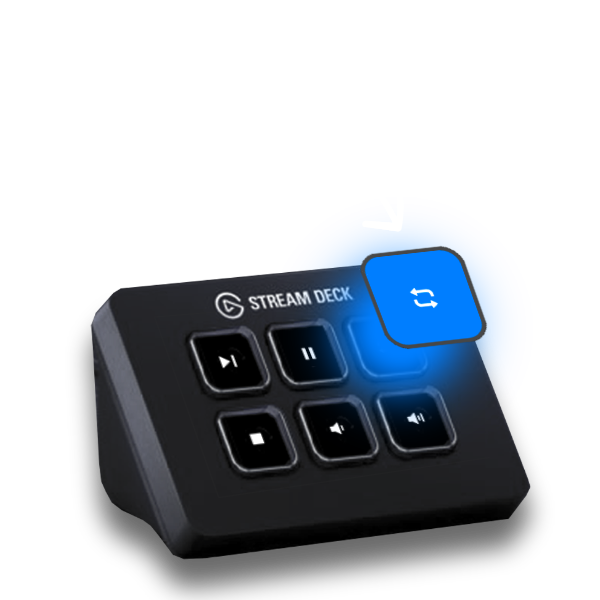
If you want to override the automatic switching at any point — say you want to stay on a specific vibe regardless of your heart rate — hit the Zone Pause button on your Stream Deck. The icon lights up blue so you always know when you're in manual mode. Hit it again to resume automatic switching.
Tips for Getting the Most Out of It
Tune your zone thresholds. The defaults are a good starting point, but your zones should reflect your actual fitness level. If you're regularly hitting 160 BPM during "moderate" effort, shift the boundaries to match.
Assign playlists intentionally. The automatic switching works best when your playlists have a consistent energy level throughout. Avoid putting slow tracks in your Hard zone playlist — the mismatch will be noticeable.
Use Zone Pause during transitions. If you're taking a break mid-stream but don't want the music to drop back to your Easy playlist while your heart rate recovers, Zone Pause keeps things locked in.
Use the Skip button freely. If a track comes on that doesn't fit the moment, skip it from your Stream Deck without breaking your flow.
Why This Works Well for Streamers
The core value here isn't just convenience — it's authenticity. Your viewers can see your heart rate on screen (if you're using a HypeRate overlay), and when your music matches your actual intensity, the whole stream feels more cohesive. It's a small detail that adds up over time.
The Stream Deck integration specifically solves a real problem: switching music mid-stream usually means tabbing out, losing focus, and breaking the moment. With physical buttons, you stay in the zone — literally and figuratively.
HypeRate Music Matcher is free to use and takes less than 10 minutes to set up. If you're already using HypeRate for your heart rate overlay, adding Music Matcher is a no-brainer.
Give it a try at musicmatcher.hyperate.io.