
Your real heartbeat. Live on your stream. Rendered right inside OBS. 💓
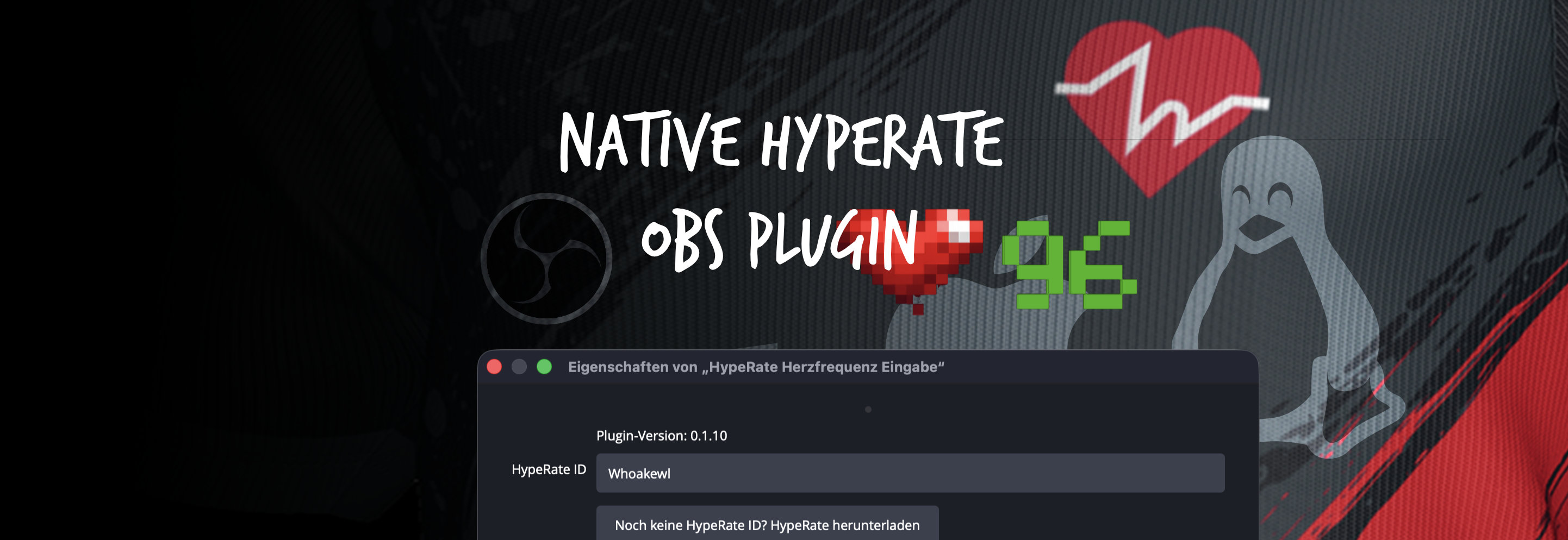
If you've ever wanted your overlay to pulse with your actual pulse — a facecam that shakes when a jumpscare lands, a logo that beats in time with your heart, a live BPM readout your chat can watch climb — the OBS HypeRate plugin does exactly that.
It's a free, native OBS Studio plugin that turns your live heart rate into on-stream effects. No browser sources, no external overlay tools, no extra latency. Drop a graphic into OBS, add the Heartbeat filter, and it beats, bounces or shakes in sync with your real BPM.
This guide covers what it is, how it works, how to install it on Windows, macOS and Linux, how to connect your heart rate, and how to get the most out of each source and filter.
* * *
What Is the OBS HypeRate Plugin?
The OBS HypeRate plugin is a free, native OBS Studio plugin that connects your heart rate monitor to OBS through HypeRate, the live heart-rate platform for streamers. It's written in C++ and renders directly inside OBS, so it stays smooth at any frame rate.
You build the graphic; HypeRate makes it beat. Take any source already in your scene — a PNG heart, a logo, a facecam frame, a whole overlay — and give it a pulse. Horror streamers use it to sell the jumpscare. Fitness and IRL creators use it to show effort. Plenty of people just like showing chat a live BPM that spikes at the wrong moment.
Key facts:
- Free and open source on GitHub
- Native OBS plugin in C++ — no browser sources, no added latency
- Works on Windows, macOS and Linux (OBS Studio 30+)
- Includes a Heartbeat filter, Heartbeat Glow, a native BPM Display, a synthesized heartbeat sound and pulse-triggered actions
- Works with any device the HypeRate app supports — Apple Watch, Wear OS, Garmin, Polar, ANT+/BLE chest straps and more
- Connect with a single HypeRate ID — no API key needed
Get it at obs.hyperate.io.
* * *
How It Works
The flow, roughly:
- Your heart rate monitor sends your pulse to the free HypeRate app on your phone
- HypeRate shares that live BPM in real time behind a short HypeRate ID
- The plugin's HypeRate Heart Rate Input source connects to that ID over HypeRate's WebSocket API
- One shared heart-rate state gets filled once and read by every filter and source — smoothed and sorted into zones
- Your graphics react
Because everything reads from that one shared state, you only connect once, no matter how many effects you stack on top.
* * *
What You Need Before You Start
1. The HypeRate App
HypeRate reads your heart rate from a wearable and shares it live. Download the app for iOS or Android, connect your device, and note the short HypeRate ID it shows you. That ID is the only thing you'll paste into OBS.
2. A Compatible Heart Rate Device
You need a heart rate monitor that pairs with the HypeRate app. That covers a wide range of devices:
- Chest straps (most accurate, lowest latency): Polar H10, Wahoo TICKR, Garmin HRM-Pro — see compatible chest straps
- Smartwatches and wearables: Apple Watch, Wear OS, Garmin, Samsung Galaxy Watch, Fitbit — see compatible wearables
- Any Bluetooth Low Energy (BLE) or ANT+ heart rate monitor that follows the standard HR profile
Chest straps have noticeably lower latency and more stable readings than wrist-based optical sensors, especially during movement or a tense horror run. The Polar H10 and Wahoo TICKR are the two you'll see most often. Check the full supported device list before buying.
3. OBS Studio 30 or Newer
The plugin targets modern OBS Studio (30+). If you don't have it, it's free at obsproject.com. There's nothing else to install — everything the plugin needs ships inside it.
* * *
Step-by-Step Setup
Step 1 — Download the Plugin
Go to obs.hyperate.io and pick your platform, or grab the latest build from the GitHub releases page. Each platform has both an installer and a manual ZIP.
- Windows (10/11) — installer into your OBS Studio folder, or ZIP
- macOS (13+) — per-user installer, no admin password needed, or ZIP into
~/Library/Application Support/obs-studio/plugins/ - Linux — self-extracting
.runinstaller, or ZIP into~/.config/obs-studio/plugins/
Step 2 — Install and Restart OBS
Close OBS first, run the installer (or unzip into the plugins folder for your platform), then start OBS again. On macOS, if you get a security prompt about an unidentified developer, right-click the installer, choose Open, and confirm — you only need to do this once.
To check the plugin loaded: in OBS, click the + under Sources and look for HypeRate Heart Rate Input in the list. If it's there, you're set.
Step 3 — Add the Heart Rate Input and Connect
- Under Sources, click + → HypeRate Heart Rate Input and add it to your scene (it's a non-visual control source — it won't appear on screen)
- Open the HypeRate app and read your HypeRate ID
- Paste that ID into the HypeRate ID field and click Connect
- The Status line switches to Connected and your live BPM starts flowing into OBS
You only need one input source for your whole setup. While you're there, pick a Smoothing level — Direct, Balanced, Smooth or Very smooth — depending on how twitchy or gentle you want the effects to feel.
Step 4 — Add the Heartbeat Filter to Any Source
This is the part that turns a plain graphic into a heartbeat:
- Right-click any source — a webcam, an image, a logo, a whole overlay — and choose Filters
- Under Effect Filters, click + → Heartbeat
- Pick a Motion style: Pulse, Beat (double), Bounce or Shake
- Choose an Intensity preset (Subtle, Normal, Intense, Custom) — the motion scales with your live BPM
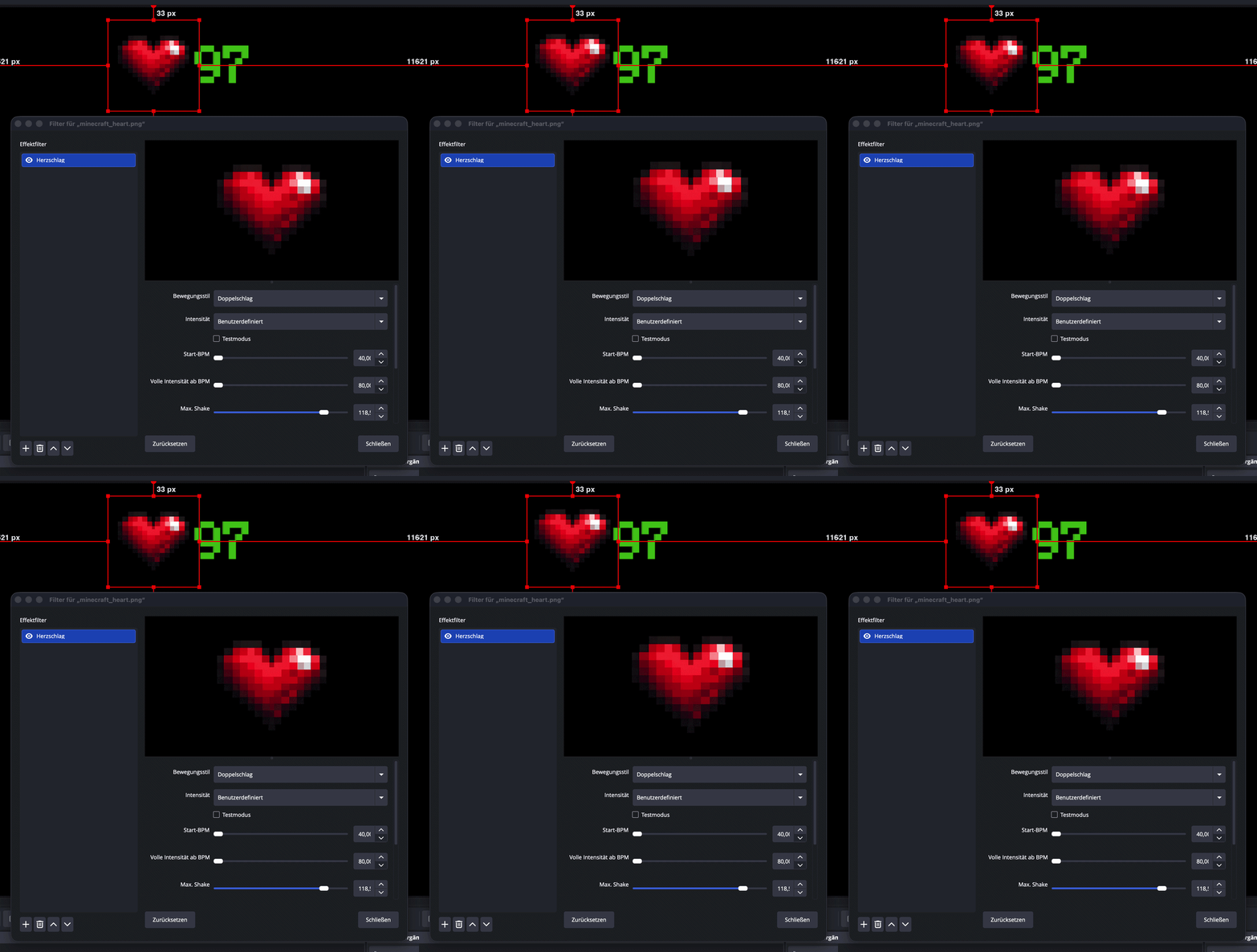
That's the whole loop: connect once, then add effects wherever you want them. Every filter also has a Test mode with a manual test BPM, so you can build and preview effects without a live connection.
* * *
The Sources and Filters, Explained
Everything below reads from the same shared heart-rate state, so you never reconnect. Mix and match freely.
Heartbeat Filter
Drop it on any source and it pulses with every beat. Motion styles: Shake, Bounce, Pulse (classic) and Beat (double). Beyond the presets, you can tune Start BPM and Full intensity BPM (how your pulse maps to motion), Max shake in pixels, Motion smoothing, Pulse length and Edge padding (overscan, so the shake never reveals empty edges).
Heartbeat Glow
A configurable-color glow that pulses with each beat. Choose a Heartbeat style — Single pulse, Double beat or Soft pulse — then set Glow color, Glow opacity, Glow size, Source brightness and Color tint. Works well around a facecam, a heart PNG or a logo to make the whole thing feel alive.
BPM Display
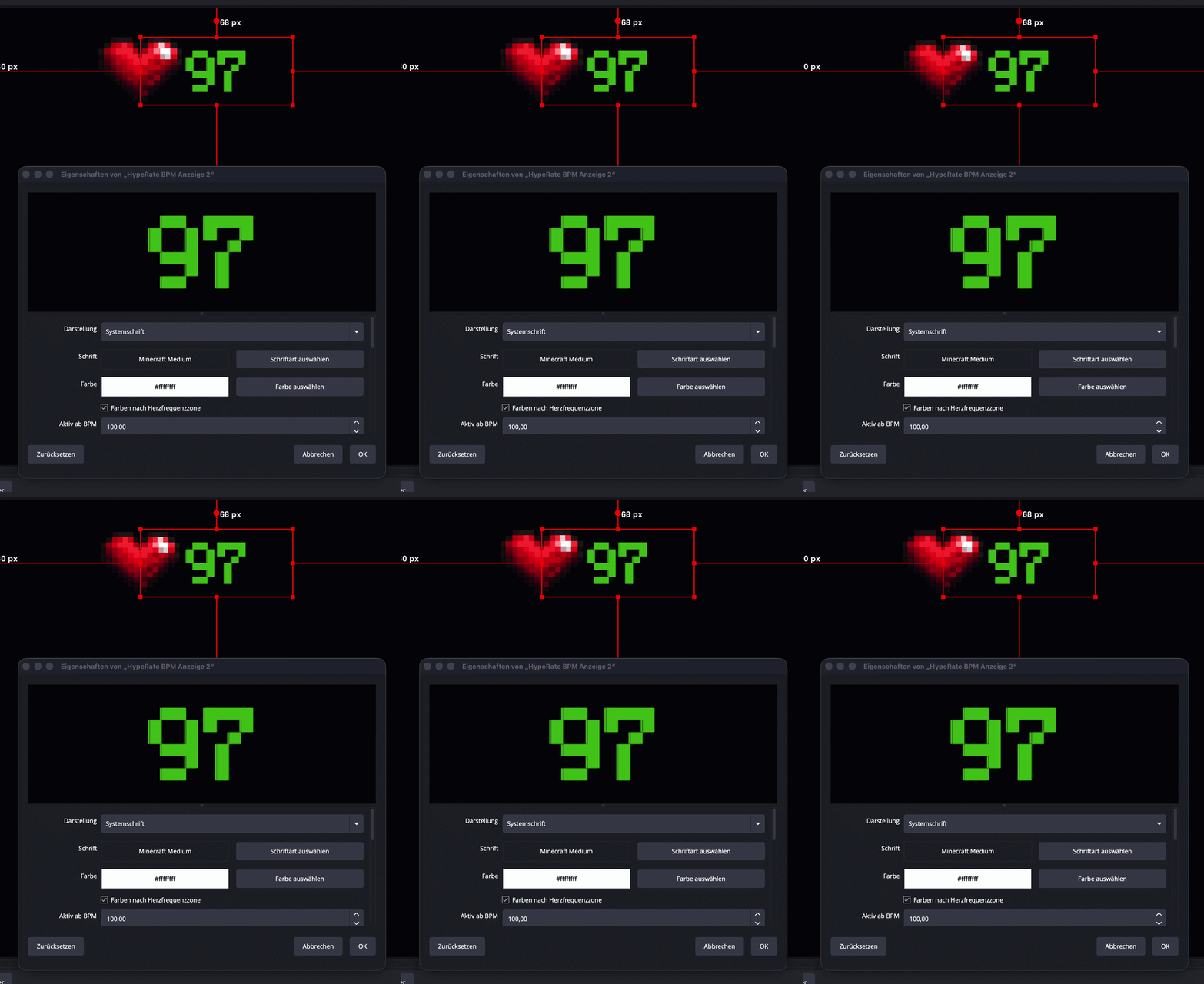
A clean, native readout of your live heart rate — no browser source, no lag. Render it with Segment digits (Digital, Slim, Bold, Block styles) or a system font of your choice. Use a static color, or turn on heart-rate zone colors so the number recolors itself as you climb from Resting to Peak. There's an optional glow, adjustable width and height, and an option to keep showing a placeholder while disconnected.
Heartbeat Sound and Pulse-Triggered Actions
The HypeRate Actions source fires an action when your BPM crosses a threshold you set. It can:
- Play a heartbeat sound — a synthesized lub-dub built from your live BPM and mixed straight into your stream audio, speeding up as your pulse climbs
- Switch scenes when you cross the line
- Show or hide a source (a "PANIC" overlay, for instance)
- Turn a filter on or off
Set a Trigger at BPM threshold and a Reset after BPM drop value (hysteresis) so it doesn't flicker on and off right around the line.
* * *
Three Setups Worth Copying
The Horror Facecam
Add the Heartbeat filter (Shake) and Heartbeat Glow (red) to your facecam, plus a HypeRate Actions source set to Show source that reveals a "PANIC" overlay above roughly 130 BPM. When the jumpscare lands, the whole stream feels it — and hears it.
The Fitness / IRL Overlay
Drop in a BPM Display with zone colors so viewers can watch your effort in real time, and add a subtle Heartbeat pulse on your logo. Works well for workout streams, dance, and just-chatting.
The Clutch Meter
Put a Heartbeat Glow on your gameplay border and a HypeRate Actions heartbeat sound above your "clutch" threshold. When the round gets tense, the border pulses harder and the lub-dub kicks in — no manual toggling required.
* * *
Heart Rate Zones
The plugin sorts your live BPM into four zones, tracks your session maximum, and applies exponential smoothing. The BPM Display can recolor itself by zone automatically:
- Resting — below 100 BPM
- Active — 100–129 BPM
- High — 130–159 BPM
- Peak — 160+ BPM
The thresholds behind these colors (Active from BPM, High from BPM, Peak from BPM) are all adjustable, so you can tune them to your own resting and max heart rate.
* * *
Choosing the Right Heart Rate Device
The effects are only as good as the data feeding them. Three main categories:
Chest Straps (Lowest Latency)
Chest straps read electrical cardiac signals rather than light-based pulse detection, which makes them faster and more accurate, especially during movement or intense gameplay.
- Polar H10 — the accuracy benchmark, Bluetooth 5.0
- Wahoo TICKR — good value, reliable connection, a streamer favorite
- Garmin HRM-Pro — dual ANT+/Bluetooth, holds up well during high-movement sessions
See all compatible chest straps.
Smartwatches
If you already own a compatible watch, it may work out of the box: Apple Watch, Wear OS watches, Garmin (Forerunner / Vivoactive / Venu), Samsung Galaxy Watch, and select Fitbit models.
See the full list of compatible smartwatches and wearables.
Fitness Bands
A budget-friendly way in. Many BLE-standard bands work if they broadcast a standard heart rate profile — check the supported device list before buying.
* * *
Troubleshooting
The plugin doesn't show up in OBS
- Make sure you fully closed OBS before installing, then restarted it
- Confirm your OBS is version 30 or newer (Help → About)
- On macOS, a manually unzipped plugin needs to sit in
~/Library/Application Support/obs-studio/plugins/; on Linux, in~/.config/obs-studio/plugins/
Status shows "Error" or won't connect
- Double-check the HypeRate ID matches exactly what the HypeRate app shows
- Make sure the HypeRate app is running and actually receiving a heart rate from your device
- Click Disconnect, then Connect again — the client reconnects automatically
- Confirm your OBS machine has a working internet connection
I'm connected but the effects don't move
- Confirm the Heart Rate Input source shows a live BPM, not 0
- Turn on a filter's Test mode and set a Test BPM — if it moves, the effect is fine and the issue is upstream, in the live feed
- Check the filter's Start BPM isn't set above your current heart rate — below it, nothing happens
The HypeRate connection drops during long sessions
- Check your phone's battery saver settings — Android in particular kills background apps aggressively
- Keep the HypeRate app in the foreground during longer streams
- Brief drops usually recover on their own; the input source reconnects automatically
* * *
Frequently Asked Questions
Is the OBS HypeRate plugin really free?
Yes, completely. It's free to download and use, and the source is on GitHub. The only other thing you need is the free HypeRate app, for your ID.
Do I need a browser source?
No. It's a native OBS plugin written in C++. Everything renders inside OBS directly — no browser overlays, no extra latency.
Which heart-rate monitors work?
Anything the HypeRate app supports: Apple Watch, Wear OS, Garmin, Polar, ANT+/BLE chest straps and more. The plugin itself only needs your HypeRate ID.
Do I have to paste an API key?
No. A shared, limited HypeRate token is built into the plugin, so a HypeRate ID is all you need to configure.
Can I use several effects at once?
Yes, and you still only connect once. A single shared heart-rate state feeds every filter and source, so stack as many as you like.
Which platforms are supported?
Windows 10/11, macOS 13+ and Linux, all with OBS Studio 30 or newer.
Can I preview effects without wearing my device?
Yes. Every filter has a Test mode with a manual test BPM, so you can build your whole scene before strapping anything on.
* * *
Get Started
Setup takes about three minutes. Install the plugin, add the HypeRate Heart Rate Input source, paste your HypeRate ID, and add heartbeat filters wherever you want them. From there it just runs, live, in sync with your pulse, for the whole stream.
What you need:
- The HypeRate app (free) for your HypeRate ID
- A compatible heart rate monitor
- OBS Studio 30+ from obsproject.com
- The plugin from obs.hyperate.io
Horror streamer, fitness creator, or just someone who thinks a real heartbeat inside an overlay is a good idea — the plugin does the same job either way: native, free, and running in real time.