
How to Add a Live Map to Your IRL Stream (HypeRate Map + IRL Setup)
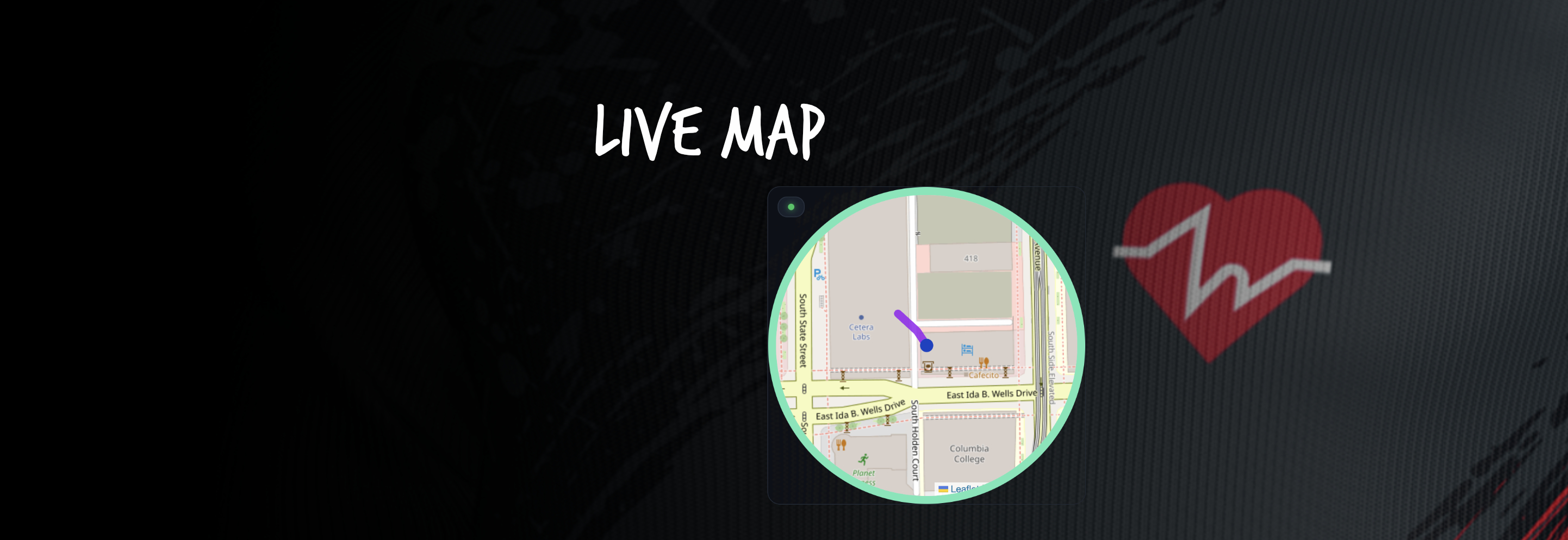
IRL streams need geography. When viewers see your exact location moving on a live map, they understand where you are, how far you've traveled, and where you're headed—all without you explaining anything.
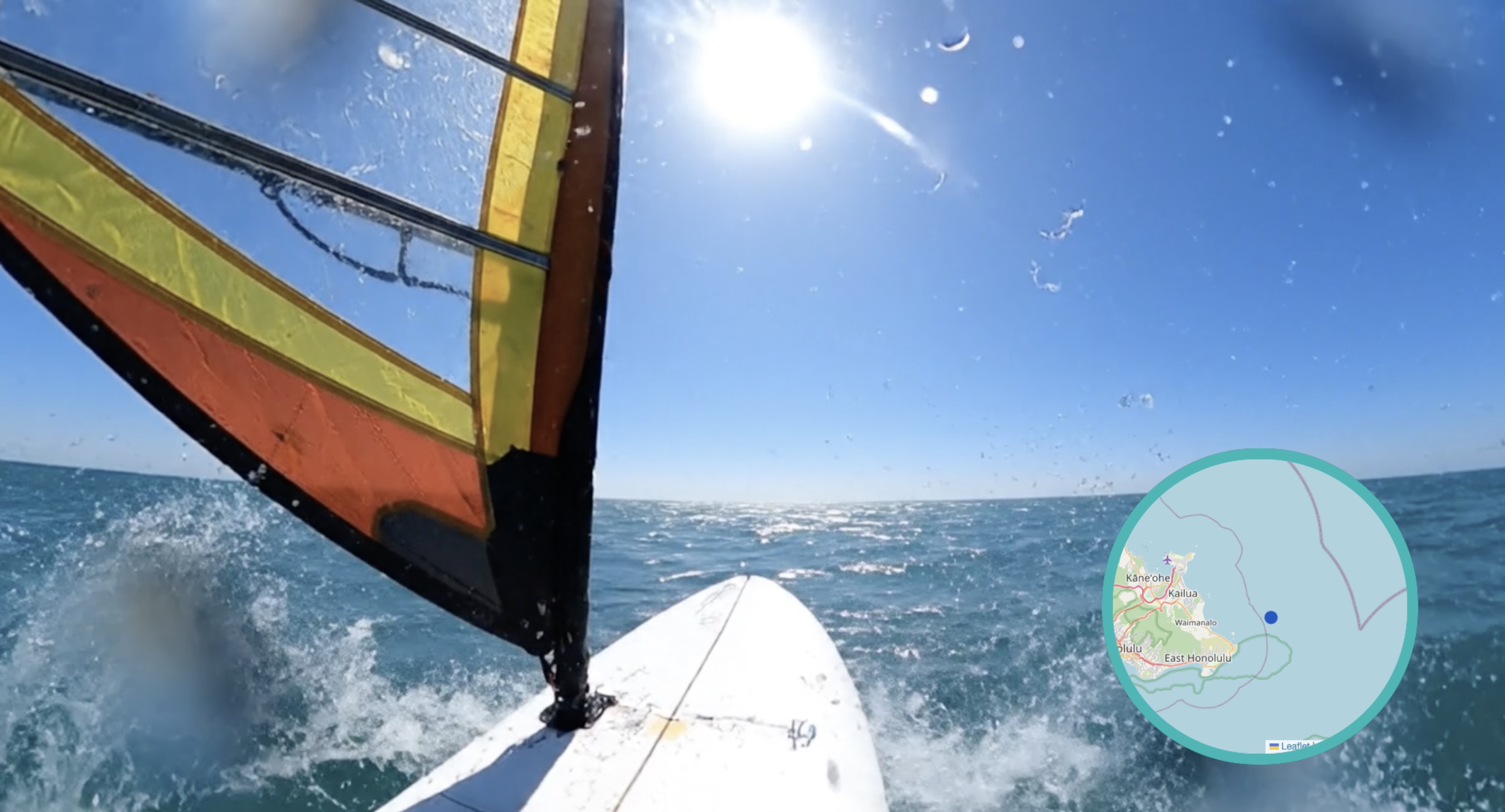
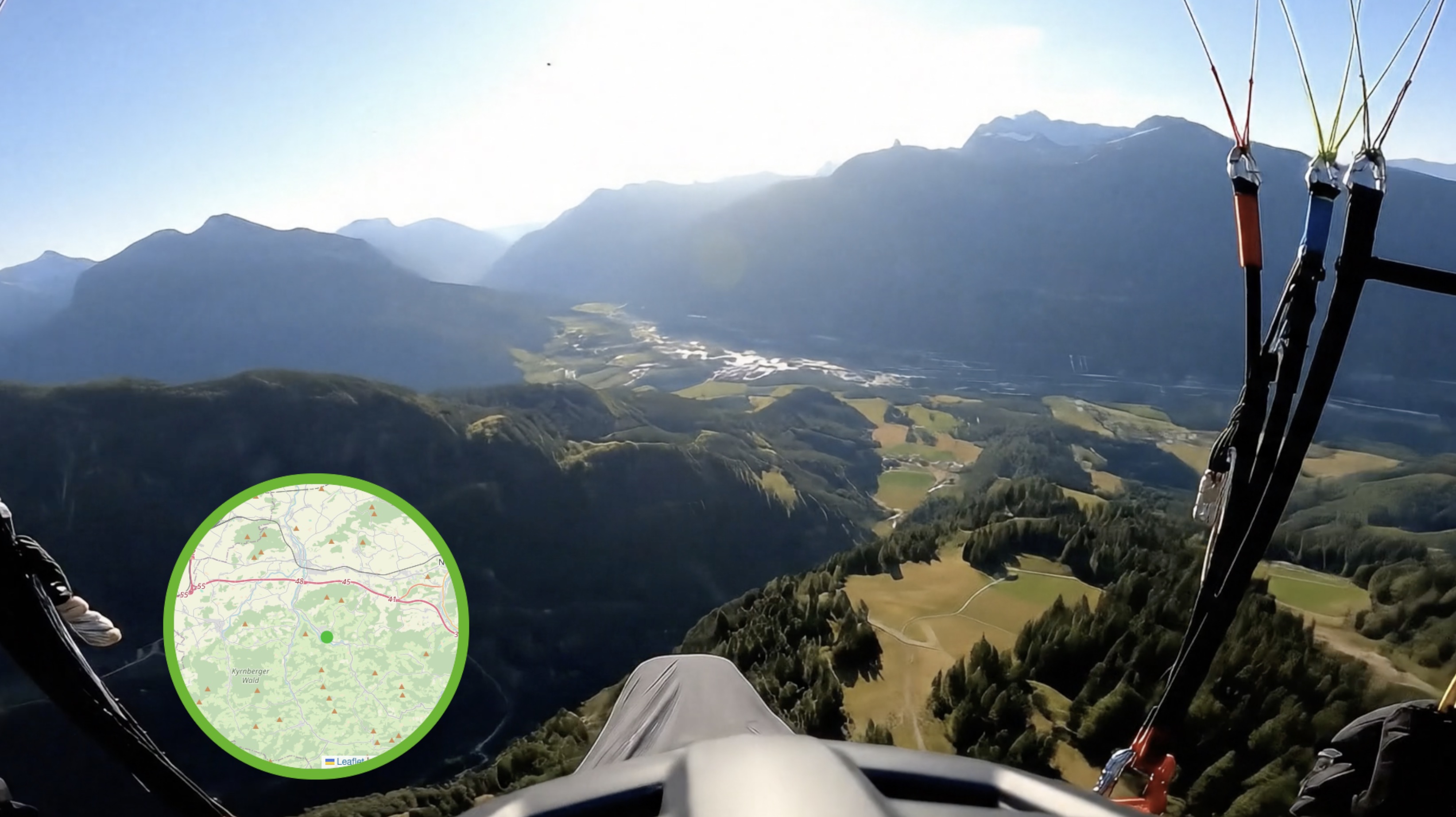
HypeRate Live Map tracks your GPS location in real-time and displays your route as an animated trail on stream. Works with any outdoor IRL content: cycling, running, urban exploration, road trips, or adventure streams. Here's how to set it up.
What HypeRate Live Map Tracks
HypeRate Live Map uses your phone's GPS to display real-time location data on stream:
- Current Location: Blue marker shows exactly where you are right now
- Travel Route: Green trail shows the path you've taken from the start
- Speed: Updates as you move (pairs perfectly with Speedometer)
- Elevation: Tracks altitude changes during climbs or descents
The map auto-centers on your location as you move, so viewers always see your current position. The trail updates live—when you turn, climb, or stop, the map reflects it instantly.
Why IRL Streamers Need Live Maps
Location context makes IRL content infinitely more engaging. When viewers can see your route on a map while watching your POV camera, they're oriented in space and invested in the journey.
- Cycling streams: Show your exact route through cities, trails, or long-distance rides
- Running content: Display your path during outdoor runs or trail races
- Urban exploration: Viewers follow along as you navigate neighborhoods or discover new areas
- Road trip streams: Track your journey across regions or countries in real-time
- Adventure challenges: "Find X location without GPS" becomes watchable when chat can see if you're getting closer
- Fitness goals: "Complete a 10km loop" has visual proof when the map shows the closed route
The map overlay turns vague location descriptions ("I'm near the park") into precise, visual geography.
Customization Options
HypeRate Live Map is fully customizable to match your stream layout:
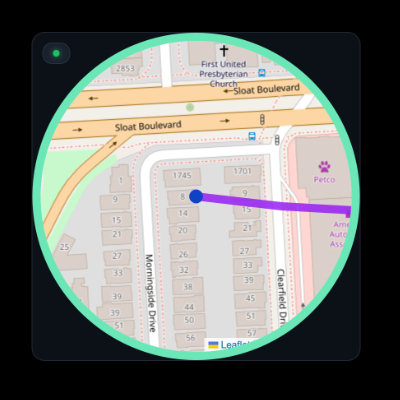
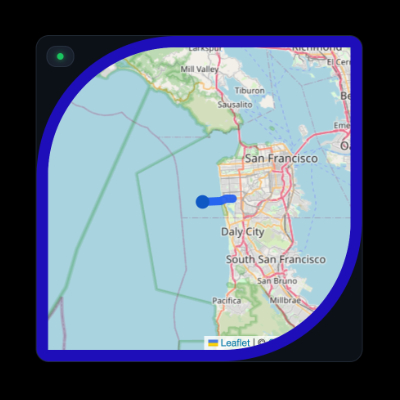
- Border Radius: Adjust corners from sharp (0%) to fully circular (50%)
- Border Width: Set border thickness around the map (0-20px)
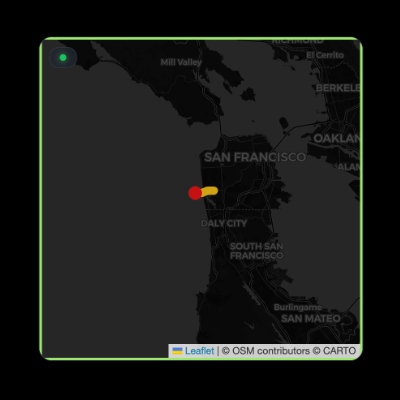
- Map Opacity: Control map transparency (0-100%) for subtle or prominent overlays
- Overlay Dimensions: Resize width and height to fit your stream layout (recommended: 400x400px)
Setup (60 Seconds)
Step 1: Get Your Live Map Link
- Open HypeRate app on your phone (iOS/Android) or go to map.hyperate.io
- Enter your HypeRate device ID
- Customize map appearance (border radius, opacity, dimensions)
- Tap "Copy URL for OBS"
Step 2: Add Map to OBS
- Open OBS on your streaming PC
- Click the + under Sources → Browser
- Paste your HypeRate Live Map link
- Set width/height (default: 400x400px, adjust as needed)
- Click OK
Step 3: Go Live
- Enable GPS on your phone (required for location tracking)
- Start your IRL activity
- Your live location and route appear on stream automatically
- Done
The map works anywhere your phone has GPS signal—cities, trails, mountains, or open roads.
Safety & Privacy Tips
Live GPS tracking is powerful, but requires smart usage to protect your safety and privacy:
- Stream delay: Use a stream delay so your exact real-time location isn't broadcast instantly
- Start/end points: Don't start or end streams at home—begin a few blocks away to keep your address private
- Route planning: Announce your general area ("biking around downtown") but avoid real-time turn-by-turn narration
- Post-stream: Delete VODs or trim GPS segments if you accidentally revealed sensitive locations
- Blur home zones: Use OBS filters to blur the map when near your home or regular spots
GPS overlays are incredible for content, but never broadcast your exact location if it compromises safety.
Use Cases
Long-Distance Cycling: Stream century rides, bikepacking trips, or cross-country tours. The map shows progress toward your destination, elevation climbs, and total route distance. Combine with Speedometer and Heart Rate for the ultimate cycling data overlay.
Urban Running: Display your route during city runs, trail races, or fitness challenges. Viewers see when you're climbing hills, looping back, or taking shortcuts. The map validates "I just ran 10km" claims with visual proof.
Exploration Streams: Navigate new cities, hike trails, or find hidden locations. Chat follows your journey on the map and can guide you toward interesting spots or warn you about dead ends.
Adventure Challenges: "Get from Point A to Point B without GPS" or "Find the hidden landmark" become spectator sports when viewers can see if you're getting closer or wandering in circles.
Road Trip Content: Stream drives across regions or countries. The map shows your route in real-time, turning long drives into geographic storytelling. Perfect for multi-day trip streams where route progress is part of the content.
Fitness Accountability: "Complete a 5km loop without stopping" is verifiable when the map shows the exact route and distance covered. No ambiguity—the map doesn't lie.
Complete IRL Setup: Map + Data Overlays
Stack HypeRate widgets for the ultimate IRL stream:
- Live Map shows where you are and where you've been [1]
- Speedometer displays real-time speed (km/h, mph, m/s)
- G-Force tracks acceleration during sprints or hard turns
- Heart Rate shows workout intensity
- Fitness Rings displays daily Move/Exercise/Distance progress
Five browser sources in OBS, zero accounts needed. When viewers see your location moving on a map, speed climbing, heart rate spiking, and fitness rings filling simultaneously, they're watching complete real-time biometric and geographic storytelling.
Next Steps:
- Add HypeRate Speedometer to show real-time speed alongside your map
- Combine with HypeRate G-Force for cycling or driving content
- Stack HypeRate Fitness Rings to track daily activity goals during IRL streams
- Explore the full widget gallery for more IRL overlay designs